
Running a booking calendar for a team
Day view with a column per person, drag and drop, status colours and the overview screen: a daily routine for a busy front desk.

Key points
- Day view gives every team member a column, with their time off shaded.
- Drag a booking to move it to a new time or another person.
- The overview lists bookings that still need a decision.
Once bookings arrive online, the calendar becomes the place where the day is run. In Oryx Bookings it lives under Oryx Bookings > Calendar, and it is built for teams: every person gets their own column, and every booking shows its status at a glance.
Start the day in day view
Day view shows one column per team member, with their photo and the number of bookings they have. Hours they do not work, and their days off, are shaded, so you can see at once who is free.
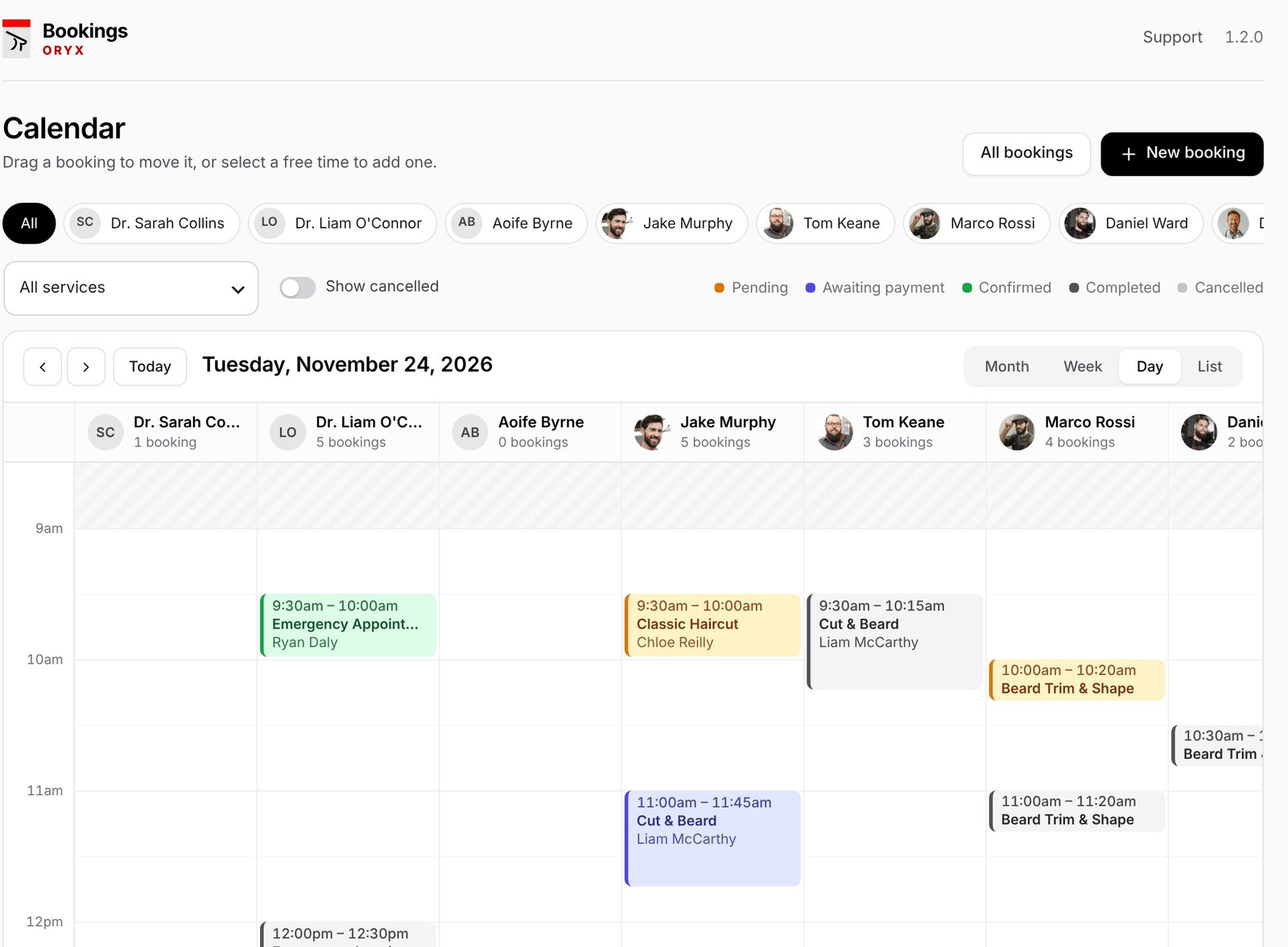
Week and day views show your working hours rather than all twenty-four, and stretch automatically if a booking falls outside them. Nothing is hidden.
Read the colours
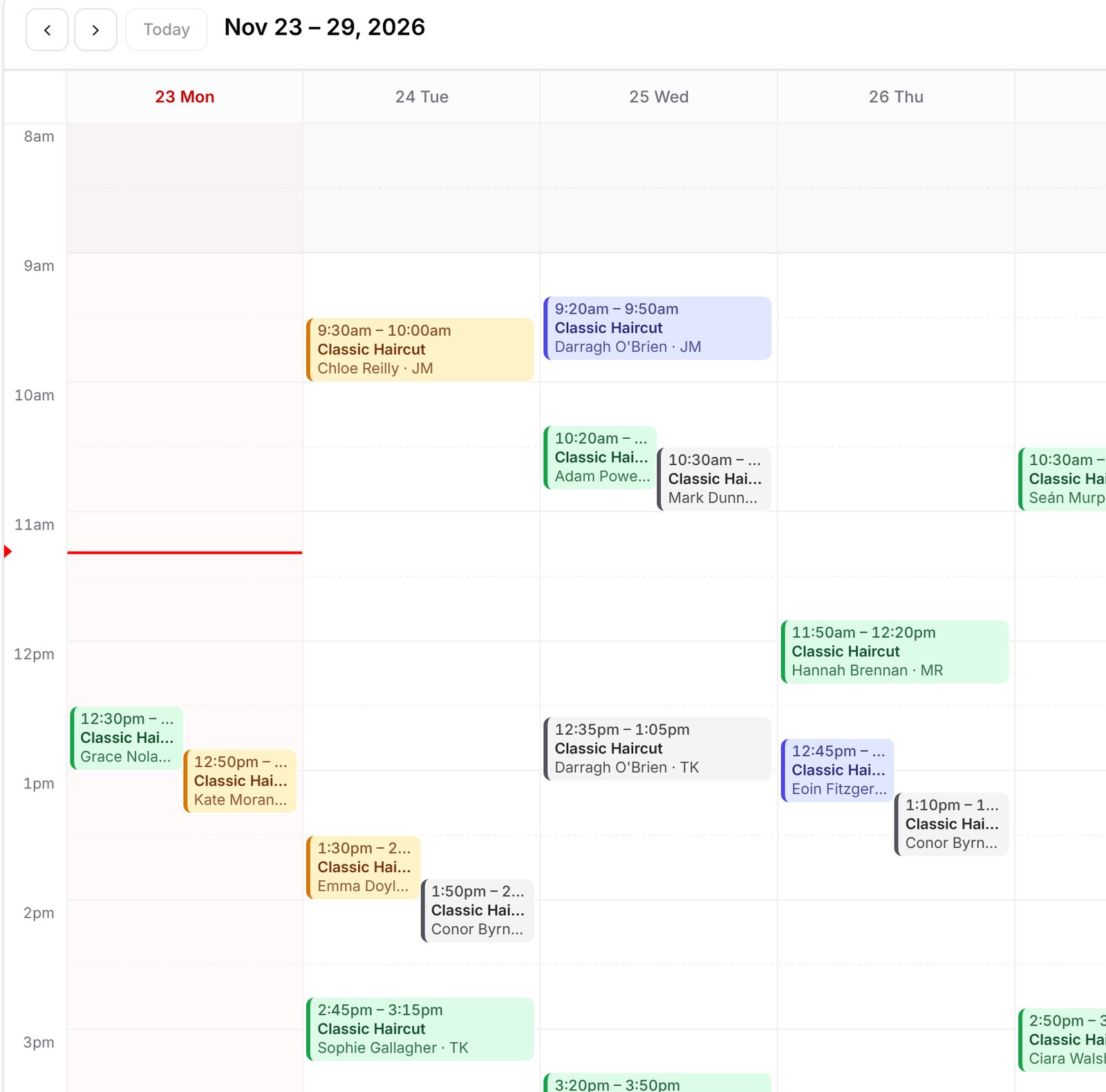
Each booking is coloured by its status: pending, awaiting payment, confirmed, completed or cancelled. Cancelled bookings are hidden by default; switch on Show cancelled when you need them. A legend sits above the calendar.
Move a booking in one gesture
When a customer rings to change their time, drag the booking to the new slot. In day view you can also drop it into another person’s column to hand it to a colleague. The move is checked on the server against past times, holidays, working hours and other bookings, exactly as a new booking would be.
Add a booking by phone
Click an empty slot to add a booking there, or use New booking, which suggests the next free time. The booking window lists only the services the chosen person provides, and checks the required fields and end time before saving.
Filter when the diary is full
Filter by team member or by service to see one diary at a time. Month view gives one line per booking, and clicking a date opens that day.
Check the overview
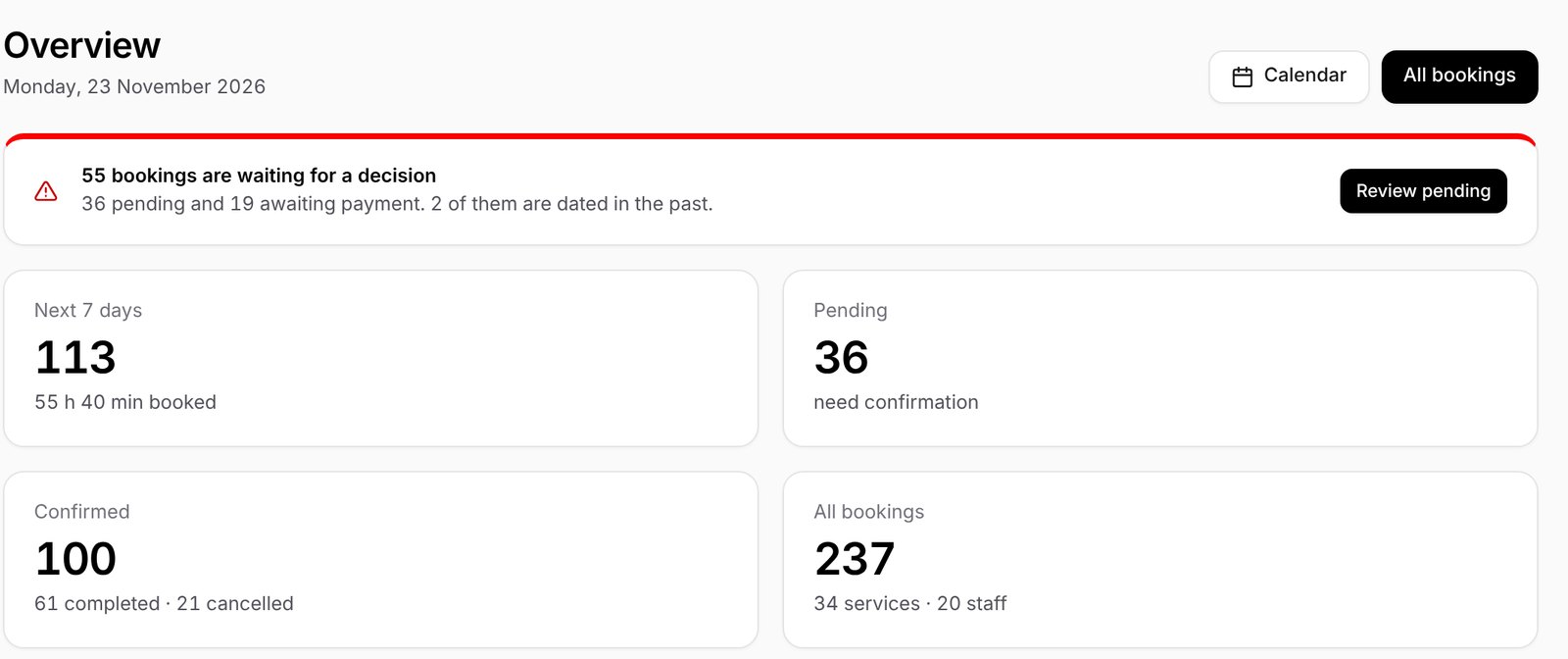
The overview screen is the morning summary: bookings in the next seven days, those waiting for a decision (including any already in the past), and whether your setup is complete. Confirm or cancel pending bookings from the bookings list, where you can also search by name, email or phone.
On a phone
The calendar works on a phone too: month view shows a dot for each day with bookings, day view lets you swipe between team members, and the list view puts the time on the left. Useful when you are away from the desk.
Put it into practice
Everything in this guide is in the free Oryx Bookings plugin.
Install it from WordPress.org, or see the feature working on this site first.
More guides
from Resources.
 Adding a booking form with Elementor, the block editor or a shortcodeThree ways to place the same form, the settings each one gives you, and how to style the form to match your theme.Read the article
 How to add online booking to a WordPress siteFrom a blank page to a booking form that only offers real free times.Read the article
 Six booking form designs, and how to choose oneStepper, Grid, Accordion, Card Flow, Flat Split or Focus Input: what each one is good at, and where it fits on your site.Read the article
Free.
No limits, no sign-up.
Install it from WordPress.org, add your services and place the form on any page. Requires WordPress 6.0 and PHP 7.4.