
Write a booking page people actually finish
Clear services, honest prices, fewer fields and a form that works on a phone: practical changes that make booking easier.

Key points
- Put the form near the top, with prices and durations on every service.
- Ask for as little as possible, and test the page on a phone.
- Say clearly what happens after the customer presses the button.
People decide quickly whether to book once they land on your booking page. They want to know what you offer, what it costs, how long it takes and when they can come. Everything else on the page either helps with that or gets in the way.
Lead with the form
Put the booking form near the top of the page, not below three paragraphs of introduction. A short heading and one sentence of reassurance are enough above it: who you are, where you are, and that booking takes a minute.
Name services the way customers do
Customers search for “teeth whitening”, not “cosmetic procedure B”. Use plain names, a one-line description of what happens, and an image where it helps. Show the price and the duration on every service; customers who cannot find the price may leave to look elsewhere.
Offer fewer, clearer choices
A long menu of near-identical services slows everyone down. Group them into categories and, on a page about one kind of treatment, show only that category. The Oryx Bookings block and Elementor widget can limit a form to the categories you choose.
Make “any professional” the easy path
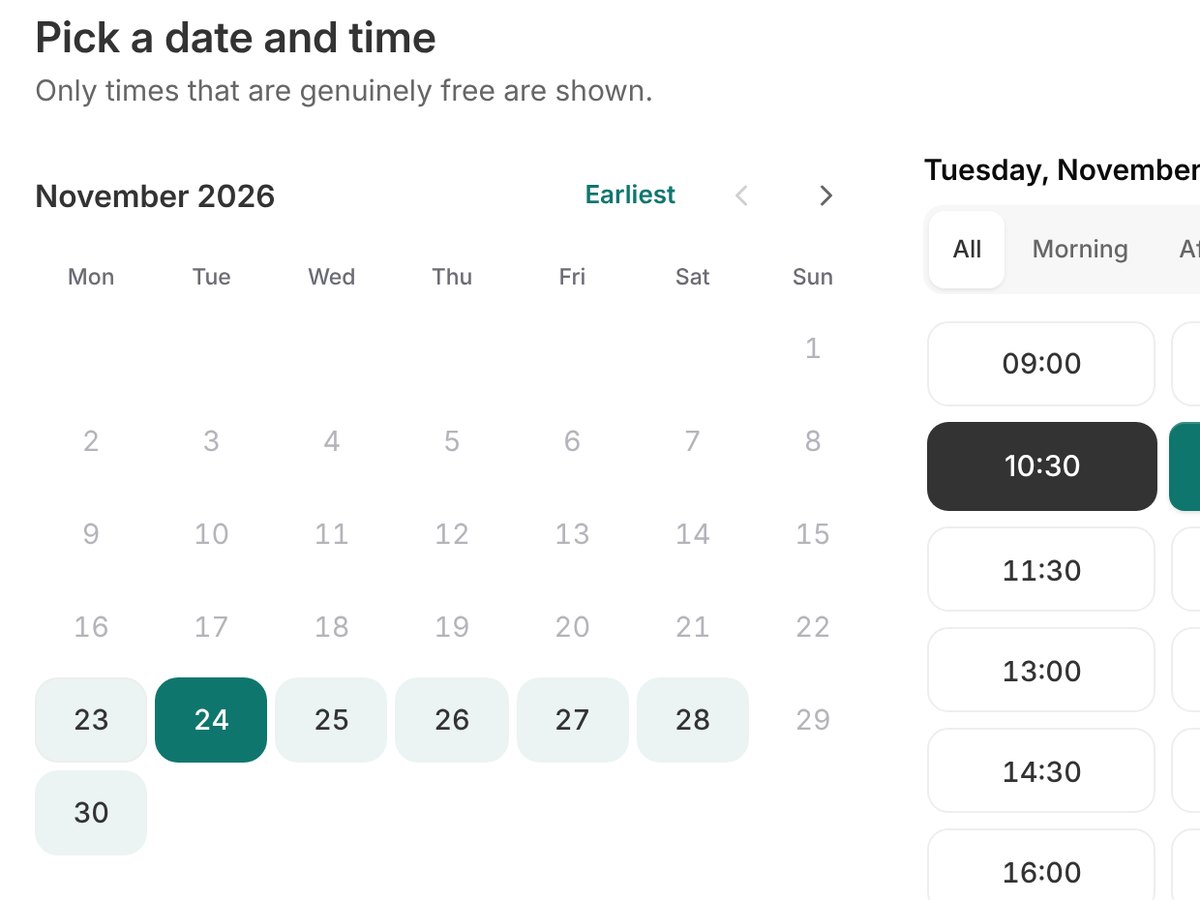
Regulars will look for their favourite person. Everyone else just wants a time. Showing photos and job titles helps the first group; the “Any professional” option serves the second and shows them the earliest free time across the team.
Ask for as little as possible
Every field is a reason to stop. The form always asks for a name and an email address; phone, address and notes are up to you. Show a phone field if you call people back, keep notes optional, and only ask for an address if you go to the customer.
Check it on a phone
Many customers will book from a phone, often in a spare moment. Open your booking page on your own phone and book something. The Oryx Bookings designs are built for phones first, with a swipeable day strip and a total that stays in view, but the rest of your page matters too: large images or pop-ups above the form push it out of reach.
Say what happens next
Customers relax when they know what comes after the button: whether the booking is confirmed straight away, whether they will hear from you, and how to change it. Put that in the success message or on a thank-you page, and make the calendar links the obvious next step.
Show it working
Real photos of your space and your team do more than any slogan. The demos on this site show the same plugin in eight different businesses, each laid out around the booking form.
Put it into practice
Everything in this guide is in the free Oryx Bookings plugin.
Install it from WordPress.org, or see the feature working on this site first.
More guides
from Resources.
 Running a booking calendar for a teamDay view with a column per person, drag and drop, status colours and the overview screen: a daily routine for a busy front desk.Read the article
 Adding a booking form with Elementor, the block editor or a shortcodeThree ways to place the same form, the settings each one gives you, and how to style the form to match your theme.Read the article
 How to add online booking to a WordPress siteFrom a blank page to a booking form that only offers real free times.Read the article
Free.
No limits, no sign-up.
Install it from WordPress.org, add your services and place the form on any page. Requires WordPress 6.0 and PHP 7.4.