
Adding a booking form with Elementor, the block editor or a shortcode
Three ways to place the same form, the settings each one gives you, and how to style the form to match your theme.

Key points
- The block, the Elementor widget and the shortcode place the same form.
- The shortcode generator builds the shortcode from your choices.
- Several forms can share a page, each with its own services.
However you build your pages, the booking form is the same underneath: the same availability, checks and confirmation. You can place it with a block, an Elementor widget or a shortcode, and even mix them across one site. The demos on this site use the block and the widget.
The block editor
In the editor, add the Oryx – Booking Form block. It shows a live preview of the form, and its settings panel lets you choose:
- The design, from the six templates.
- Which services or categories the form shows.
- Display options such as images, descriptions, prices, durations and staff photos.
- Labels and text, including the button label and success message.
- Colours, starting with your brand colour.
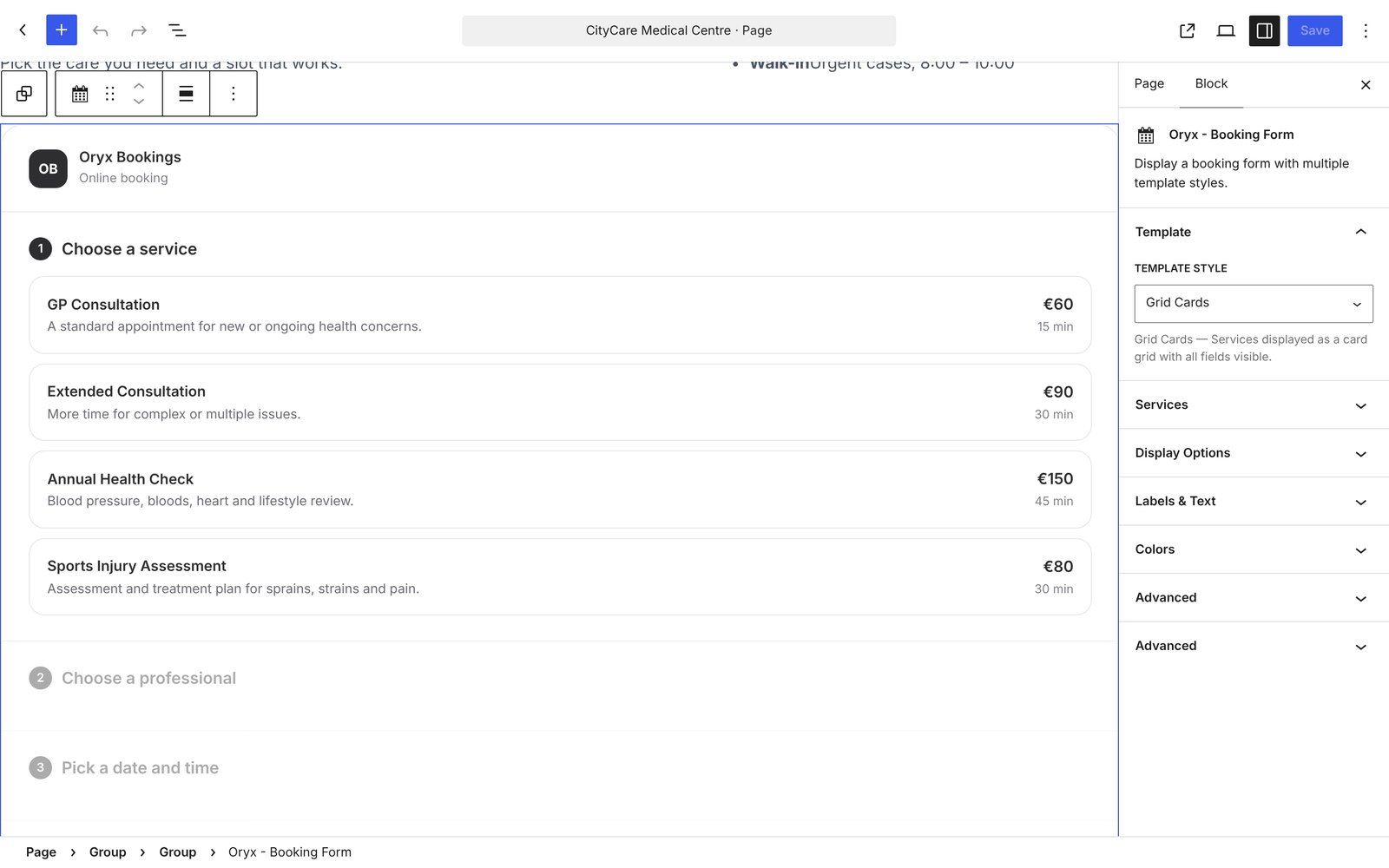
Four demos on this site, including CityCare Medical Centre, are built this way.
Elementor
Search for the booking form widget, or find it in the Oryx Bookings category, and drag it into a section. The widget has the same content options as the block, plus style controls in Elementor’s own Style tab. The Harbour Lane Veterinary demo is an Elementor page.
Any other theme or builder
Paste the [oryx_bookings] shortcode into any page, post or text widget. Options are attributes, for example:
[oryx_bookings template="stepper" primary_color="#E11D2E" show_price="no"]
You do not have to remember the attributes: the shortcode generator under Oryx Bookings > Settings builds the shortcode from your choices. The full list is on the page builders page.
Matching your theme
The form is self-contained and styled on its own, so a theme’s styles do not break it. To make it feel like part of your site:
- Set the brand colour to the main colour of your buttons.
- Pick a design that suits the space: Card Flow for narrow columns, Flat Split for a confident hero, Stepper or Grid for a dedicated page.
- Give the form room. A full-width section with some space around it reads better than a form squeezed beside a sidebar.
More than one form on a page
Each form works on its own, so one page can show, for example, a form for consultations and another for treatments, each limited to its own category. If you add a form to the page after it loads, for example in a popup, a developer can start it with window.OryxBookings.boot().
A page just for logged-in customers
The [oryx_bookings_my_bookings] shortcode shows logged-in customers their own appointments. Place it on an account page so regulars can check their next visit.
Put it into practice
Everything in this guide is in the free Oryx Bookings plugin.
Install it from WordPress.org, or see the feature working on this site first.
More guides
from Resources.
 How to add online booking to a WordPress siteFrom a blank page to a booking form that only offers real free times.Read the article
 Six booking form designs, and how to choose oneStepper, Grid, Accordion, Card Flow, Flat Split or Focus Input: what each one is good at, and where it fits on your site.Read the article
 Book a person or book a time: staff-based and service-only bookingWhen customers should choose who they see, when they should not, and how “Any professional” sits in between.Read the article
Free.
No limits, no sign-up.
Install it from WordPress.org, add your services and place the form on any page. Requires WordPress 6.0 and PHP 7.4.