
Stop fake bookings without making customers solve puzzles
How layered spam protection works in a booking form, and which settings to change if bots still get through.

Key points
- A honeypot, a minimum fill time and signed time slots work without any setup.
- Daily limits and blocklists deal with repeat offenders.
- reCAPTCHA v3 is optional, invisible, and off until you add your own keys.
A public booking form is a public door. Bots fill it in to test stolen email addresses, to spam your inbox or just because they can, and every fake booking blocks a real time in your diary. The usual answer, an image puzzle, also stops some real customers. Oryx Bookings uses quiet layers instead, and most of them work without any setup.
The layers that are on by default
- Honeypot field: a field people never see. Bots fill it in, and the submission is rejected.
- Minimum fill time: a form completed faster than a person can type is rejected. The default is 3 seconds.
- Signed time slots: each time the form shows is signed, so a bot cannot edit the time in the browser before sending it.
- Server checks: the slot is checked again on the server and briefly locked while the booking is saved, so it cannot be double booked either.
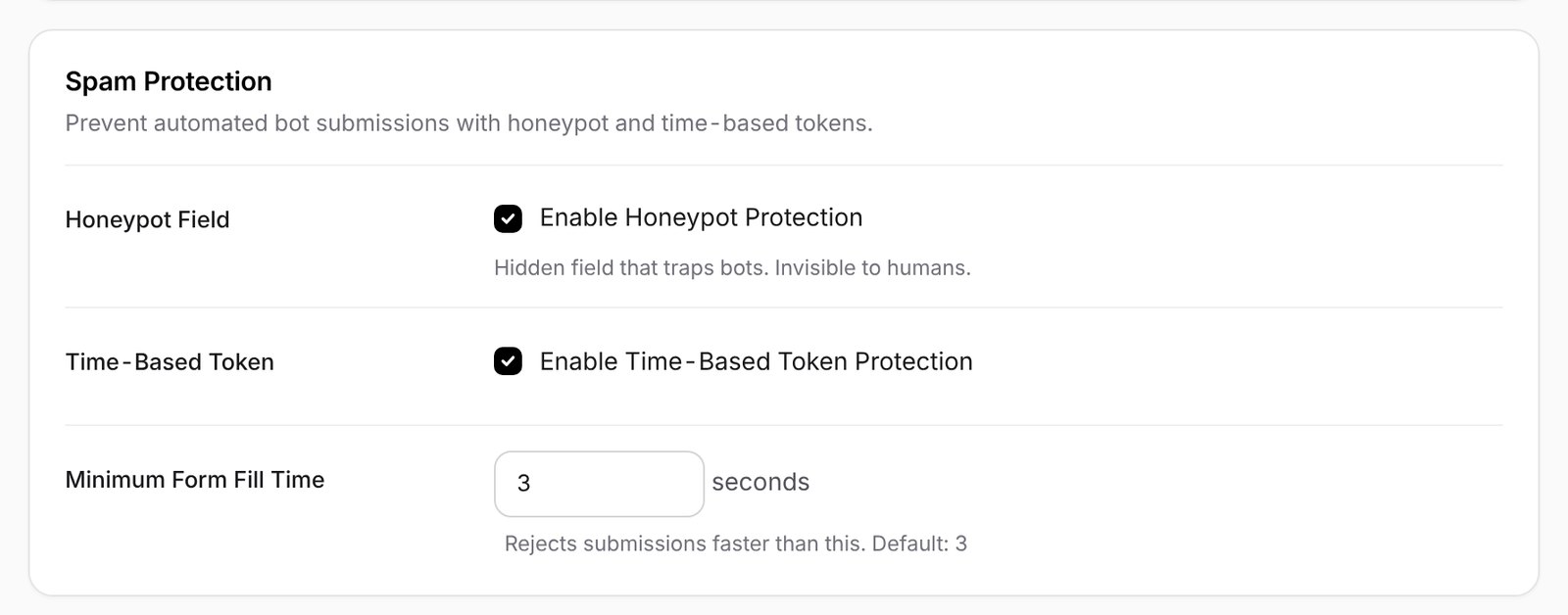
Limits for repeat offenders
Under Oryx Bookings > Settings > Security you can limit how often one visitor can look up times and book, and set a daily cap on bookings per email address, phone number and IP address. A real customer rarely books more than a couple of appointments a day; a script books hundreds.
Blocklists
If the same addresses keep appearing, block them. You can block single email addresses, whole email domains and IP addresses. Blocking a domain is useful when fake bookings come from throwaway email services.
Behind Cloudflare or a proxy
Rate limits need the visitor’s real IP address. The plugin recognises Cloudflare and local reverse proxies automatically, without trusting headers that anyone could forge. If your host uses a different trusted proxy, a developer can tell the plugin how to read the address with the oryx_bookings_client_ip filter.
When to add reCAPTCHA
Google reCAPTCHA v3 is available and off by default. It is invisible to customers: it scores each submission instead of showing a puzzle. Turn it on if fake bookings still get through the other layers, using your own keys from Google. The default minimum score is 0.5.
Keep in mind that reCAPTCHA sends information about the visitor to Google, so mention it in your privacy policy. The plugin’s readme lists exactly what is sent.
What to check if spam continues
- Look at the fake bookings: the same domain, IP address or phone number points straight at a blocklist entry.
- Lower the daily limit per email address and IP address.
- Turn on reCAPTCHA v3.
More on how customer data is stored is in customer data in your booking form.
Put it into practice
Everything in this guide is in the free Oryx Bookings plugin.
Install it from WordPress.org, or see the feature working on this site first.
More guides
from Resources.
 Customer data in your booking form: privacy basicsWhat a booking form collects, where it is stored, and how to answer a customer who asks for their data or asks you to delete it.Read the article
 Write a booking page people actually finishClear services, honest prices, fewer fields and a form that works on a phone: practical changes that make booking easier.Read the article
 Running a booking calendar for a teamDay view with a column per person, drag and drop, status colours and the overview screen: a daily routine for a busy front desk.Read the article
Free.
No limits, no sign-up.
Install it from WordPress.org, add your services and place the form on any page. Requires WordPress 6.0 and PHP 7.4.