
Taking payment for appointments with WooCommerce
How paid bookings work in Oryx Bookings: from the booking form to the checkout, and what happens when an order is paid, cancelled or refunded.

Key points
- Bookings wait as “awaiting payment” and hold their time until the order is paid.
- Paid orders confirm the booking; cancelled, refunded or failed orders cancel it.
- Online payment is optional: without it, bookings arrive as pending.
Taking payment when someone books does two things: you are paid for the time you set aside, and the booking means more to the customer. Oryx Bookings uses WooCommerce for this, so you can use any payment gateway WooCommerce supports and keep the order emails and reports you may already know.
What you need
- WooCommerce installed and active.
- At least one payment gateway set up in WooCommerce, such as Stripe or PayPal.
- Prices on your services in Oryx Bookings > Services.
Then enable checkout under Oryx Bookings > Settings > WooCommerce.
How a paid booking flows
- The customer chooses a service, a person and a time, and fills in their details.
- The booking is created as awaiting payment, and the time is held so nobody else can book it.
- The customer goes to the WooCommerce checkout with the service in the cart, and pays.
- When the order is paid, the booking is confirmed automatically.
- If the order is cancelled, refunded or fails, the booking is cancelled and the time is freed.
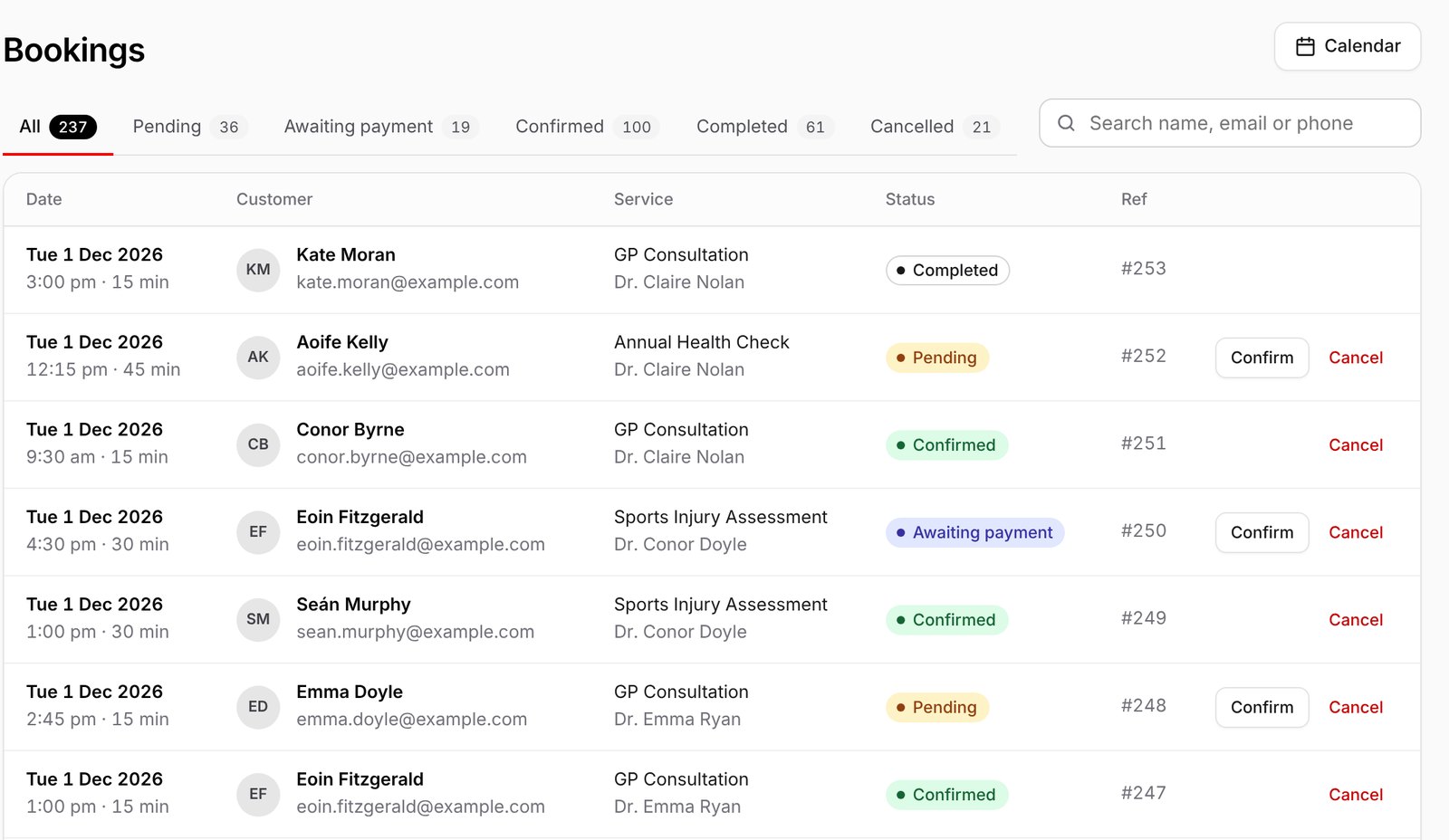
You do not need to match orders to bookings by hand. The status of each booking follows its order.
Why the held time matters
Between booking and paying, a customer might take a minute or wander off to find a card. Bookings awaiting payment block their slot in the form and in the calendar, so two people cannot pay for the same time. If the payment never completes, the order’s status decides what happens to the booking.
Emails
Customers receive the standard WooCommerce order emails for paid bookings, using the templates and branding you already set in WooCommerce. Without WooCommerce, the plugin does not send emails itself; see the note in the FAQ.
When not to take payment online
Online payment is optional, and it is not always right. A practice that bills insurers, a business that charges after the work is done, or a free first consultation all work better without it. Leave checkout off and bookings arrive as pending for you to confirm.
Good to know
- Oryx Bookings is compatible with WooCommerce High-Performance Order Storage (HPOS).
- Bookings and their payment status are visible in the bookings list, with a filter for Awaiting payment.
Put it into practice
Everything in this guide is in the free Oryx Bookings plugin.
Install it from WordPress.org, or see the feature working on this site first.
More guides
from Resources.
 Stop fake bookings without making customers solve puzzlesHow layered spam protection works in a booking form, and which settings to change if bots still get through.Read the article
 Customer data in your booking form: privacy basicsWhat a booking form collects, where it is stored, and how to answer a customer who asks for their data or asks you to delete it.Read the article
 Write a booking page people actually finishClear services, honest prices, fewer fields and a form that works on a phone: practical changes that make booking easier.Read the article
Free.
No limits, no sign-up.
Install it from WordPress.org, add your services and place the form on any page. Requires WordPress 6.0 and PHP 7.4.