
Booking rules that save phone calls and reduce no-shows
Minimum notice, a booking window, honest confirmations and calendar links: small settings that keep the diary predictable.

Key points
- Minimum notice stops bookings you cannot prepare for.
- A booking window keeps the diary close enough to remember.
- Calendar links on the confirmation put the reminder in the customer’s own calendar.
An online diary that accepts anything will eventually accept a booking for in fifteen minutes, or for a Tuesday eighteen months away. A few rules stop that, and a clear confirmation helps customers turn up.
Set a minimum notice
Under Oryx Bookings > Settings > Security > Booking Restrictions, the Minimum Notice setting is how long before an appointment it can still be booked, in minutes. A value of 120 means nobody can book anything starting in the next two hours. Times that have already started are never offered.
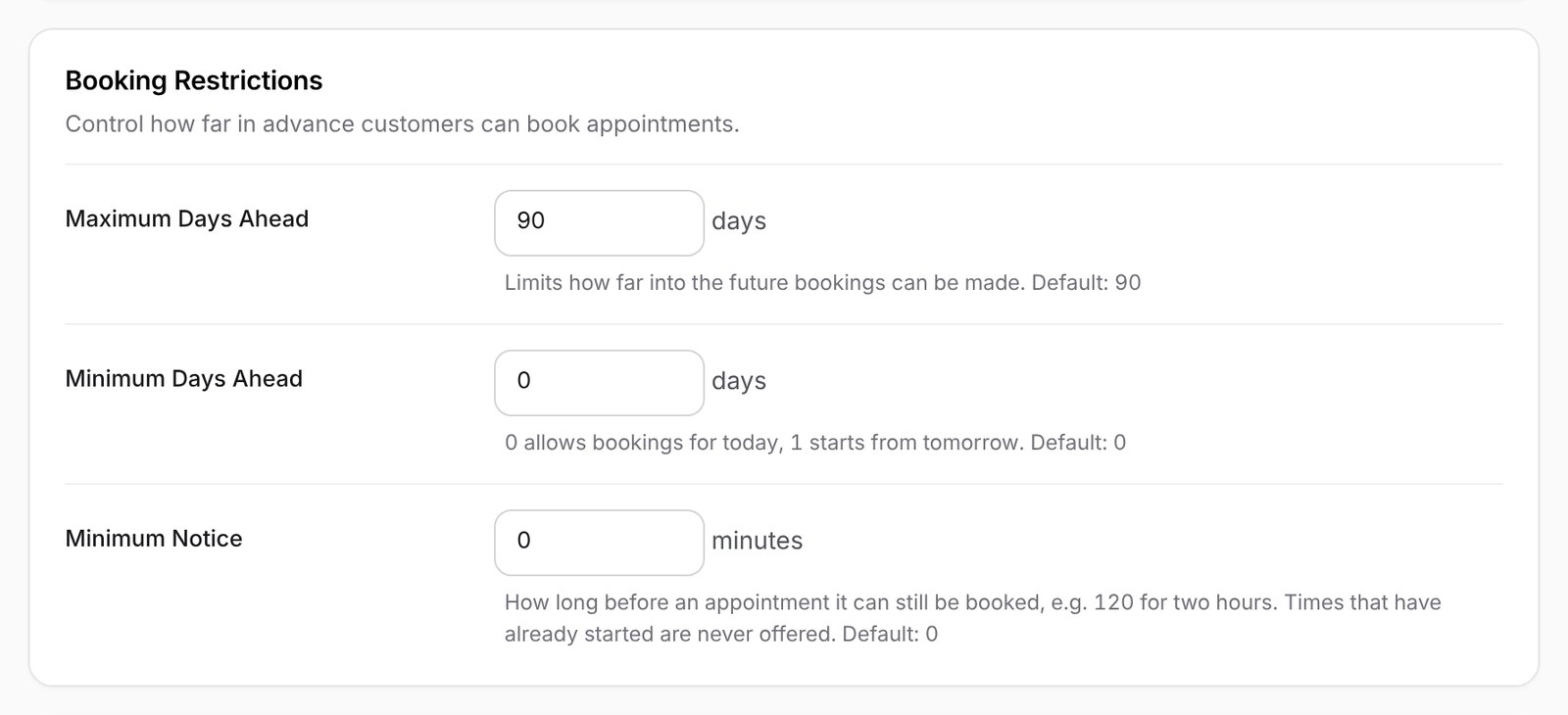
Choose a value that matches how you prepare. A barber with walk-ins might use 30 minutes; a clinic that prepares notes before each patient might use a day.
Decide how far ahead people can book
Two more settings in the same place shape the booking window:
- Minimum Days Ahead: 0 allows bookings for today, 1 starts from tomorrow.
- Maximum Days Ahead: how far into the future the calendar opens. The default is 90 days.
A shorter window means fewer bookings made so far ahead that people forget them, and less work when your hours change. A longer window suits treatments that are planned in advance.
Keep holidays in one place
Add closures under the Holidays tab, and days off for a single person on their staff screen. The form stops offering those days straight away, so customers never book a day you are closed only for you to phone them back.
Make the confirmation do some work
After booking, the customer sees the service, the person, the time and a booking reference, with Add to Google Calendar and an .ics file for Apple and Outlook calendars. An appointment in the customer’s own calendar comes with that calendar’s own reminder, which is often the reminder that matters.
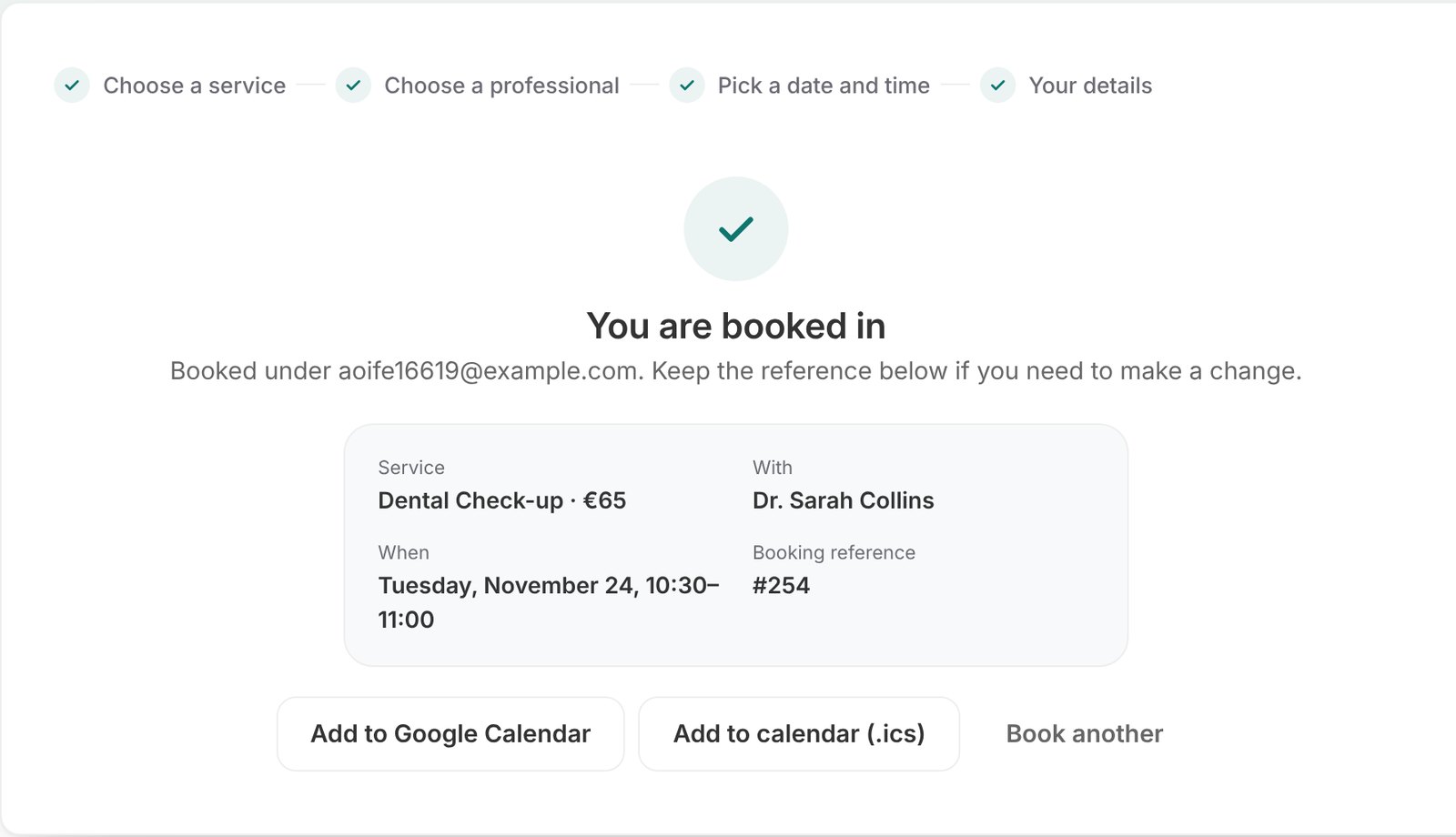
You can change the success message, or send customers to your own thank-you page with directions, parking and what to bring.
Confirm pending bookings promptly
Without online payment, new bookings arrive as pending. The overview screen shows how many are waiting for a decision, including any whose time has already passed. Deciding quickly keeps the diary honest: confirmed bookings are the ones you expect, and cancelling frees the time for someone else. The plugin does not email the customer when you confirm, so let them know if you promised to.
Consider taking payment upfront
For services where a missed appointment costs you real money, asking customers to pay when they book changes the picture. Oryx Bookings can send customers to the WooCommerce checkout, and confirms the booking only when the order is paid. See taking payment for appointments with WooCommerce.
A note on reminders
Oryx Bookings does not send reminder emails or texts itself. Paid bookings get the standard WooCommerce order emails, and developers can use the oryx_bookings_booking_created action to send a notification or pass the booking to an automation tool.
Put it into practice
Everything in this guide is in the free Oryx Bookings plugin.
Install it from WordPress.org, or see the feature working on this site first.
More guides
from Resources.
 Taking payment for appointments with WooCommerceHow paid bookings work in Oryx Bookings: from the booking form to the checkout, and what happens when an order is paid, cancelled or refunded.Read the article
 Stop fake bookings without making customers solve puzzlesHow layered spam protection works in a booking form, and which settings to change if bots still get through.Read the article
 Customer data in your booking form: privacy basicsWhat a booking form collects, where it is stored, and how to answer a customer who asks for their data or asks you to delete it.Read the article
Free.
No limits, no sign-up.
Install it from WordPress.org, add your services and place the form on any page. Requires WordPress 6.0 and PHP 7.4.