
Book a person or book a time: staff-based and service-only booking
When customers should choose who they see, when they should not, and how “Any professional” sits in between.

Key points
- Staff-based services let customers choose who they see.
- “Any professional” shows the earliest free time across the team.
- Service-only booking suits one-person businesses, a single room or bay, and drop-off work.
There are two ways to take an appointment. Either the customer books a person, or they book a time and you decide who, or what, serves them. Oryx Bookings supports both, per service, so one site can mix them.
Staff-based services
The customer chooses a team member, then sees that person’s free times. Availability comes from your opening hours, that person’s own schedule and days off, and the bookings they already have.
This suits businesses where the relationship matters: a regular barber, a dentist a patient trusts, a solicitor who already knows the case. It also lets each person keep their own pattern of working days.
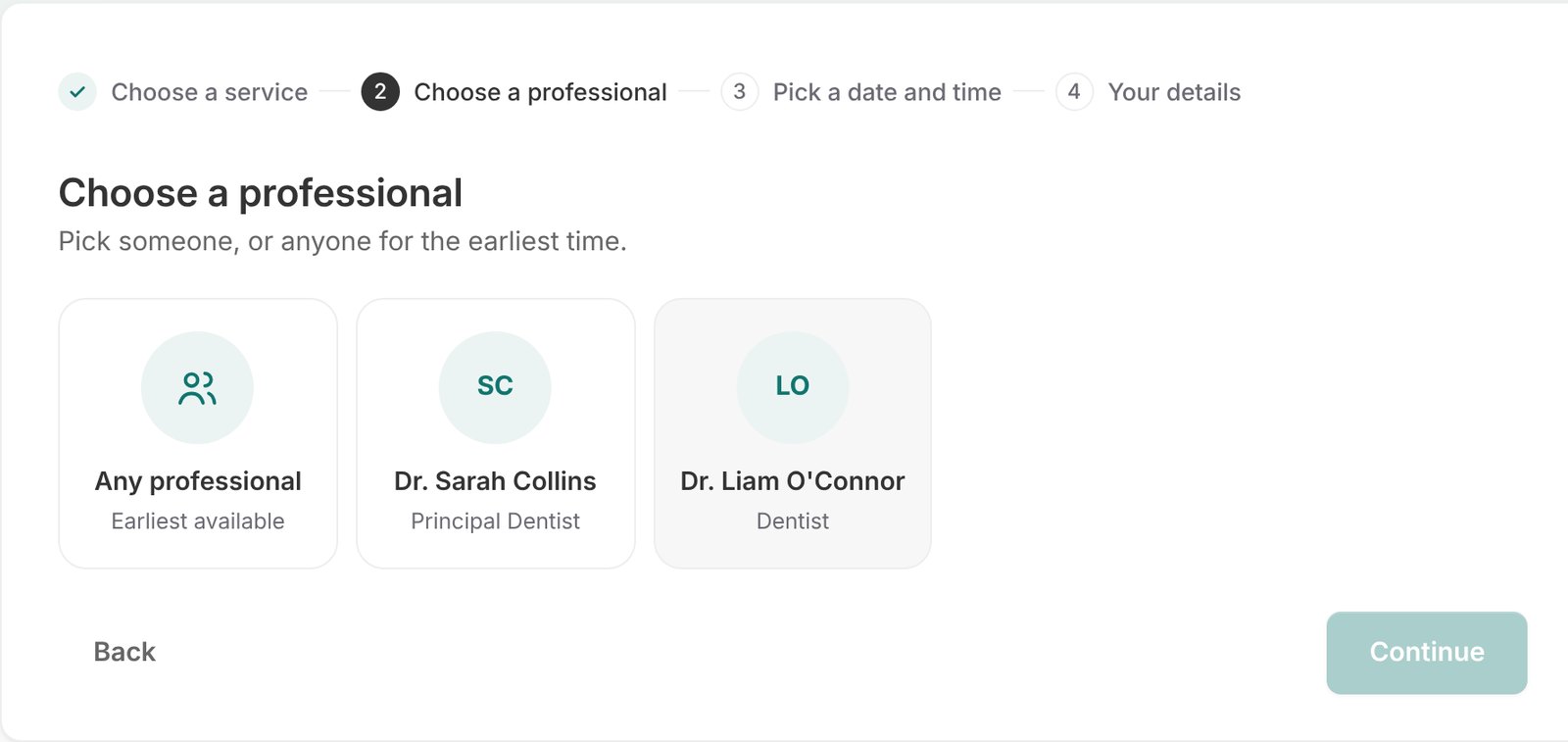
“Any professional”
When a service has more than one team member, the form offers “Any professional”. The customer sees every free time across the team, and the booking goes to the first person who is free at that time.
This is the fastest way to book for customers who do not mind who they see, and it fills gaps in the diary that a single person’s calendar would hide. Most staff-based businesses want both: a named person for regulars, any professional for everyone else.
Service-only services
Set a service’s availability mode to Service-only and customers book straight against your opening hours, without choosing anyone. The professional step is skipped.
This suits:
- One-person businesses, where choosing a person would be a step with one answer.
- A single room, bay, studio or piece of equipment rather than people. Service-only services share one diary, so they take one booking at a time.
- Drop-off services, such as a car detailing studio, where the job is done during the day rather than at a fixed chair.
The Graphite Auto Studio demo uses service-only booking for packages that run from one hour to most of a day.
Mixing the two
The mode is set per service, so a clinic can run staff-based consultations next to a service-only room for a scan, and the calendar shows both. Assign staff only to the services they actually provide: the form lists only the people who offer the chosen service.
Which one should you start with?
- If customers ask for someone by name, use staff-based services and turn on as many team members per service as you can.
- If they ask “when can you fit me in?”, use staff-based services and let “Any professional” do the work.
- If there is no one to choose, use service-only.
You can change a service’s mode later; existing bookings stay where they are.
Put it into practice
Everything in this guide is in the free Oryx Bookings plugin.
Install it from WordPress.org, or see the feature working on this site first.
More guides
from Resources.
 Booking rules that save phone calls and reduce no-showsMinimum notice, a booking window, honest confirmations and calendar links: small settings that keep the diary predictable.Read the article
 Taking payment for appointments with WooCommerceHow paid bookings work in Oryx Bookings: from the booking form to the checkout, and what happens when an order is paid, cancelled or refunded.Read the article
 Stop fake bookings without making customers solve puzzlesHow layered spam protection works in a booking form, and which settings to change if bots still get through.Read the article
Free.
No limits, no sign-up.
Install it from WordPress.org, add your services and place the form on any page. Requires WordPress 6.0 and PHP 7.4.